

Table of Contents
What Is a Hard Disk Problem?
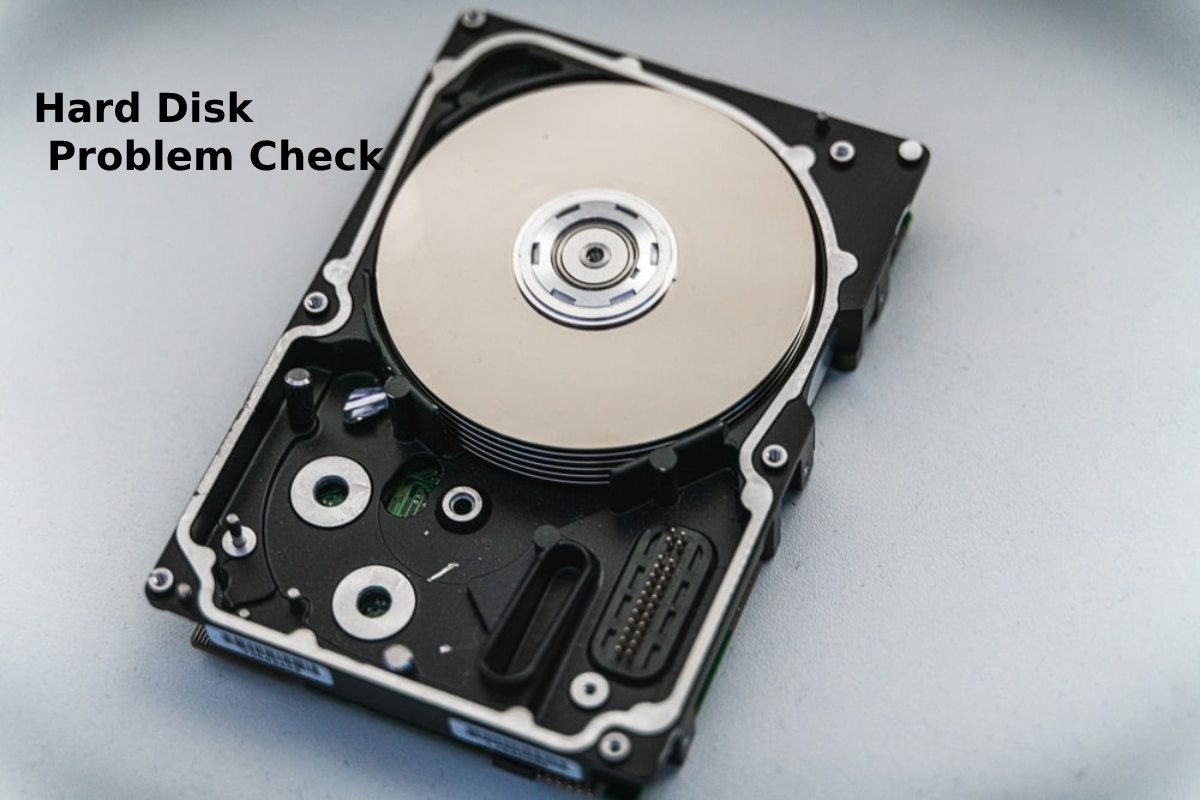
A hard disk problem occurs when your storage device (HDD or SSD) starts malfunctioning, leading to slow performance, data corruption, or even complete data loss. These issues can be physical (hardware damage) or logical (software/file system errors).
Hard disk problems are serious because they directly affect your data, operating system, and overall system performance.
Common Signs of Hard Disk Failure
Recognizing early warning signs can help you prevent data loss.
| Symptom | What It Means |
| Slow performance | Disk struggling to read/write data |
| Frequent crashes | Possible bad sectors or corrupted files |
| Clicking noise | Physical damage in HDD |
| Missing files | File system corruption |
| Blue screen errors | Critical disk or OS issue |
Quick Tip: If you notice 2–3 of these signs together, act immediately.
Causes of Hard Disk Problems
Hard disk issues don’t happen randomly—they usually have specific causes.
- Physical damage (drops, shocks)
- Power failures or sudden shutdowns
- Virus or malware attacks
- Overheating
- Aging hardware (especially HDDs)
How to Check Hard Disk Health
You don’t always need expert help—you can check your disk health yourself.
Basic Methods:
- Use built-in Windows tools
- Check SMART status
- Run disk scanning software
- Monitor unusual system behavior
Built-in Tools for Hard Disk Problem Check
Windows provides free tools to detect disk issues.
| Tool | Function | Difficulty |
| CHKDSK | Finds and fixes disk errors | Easy |
| Disk Management | Shows disk status | Easy |
| Event Viewer | Logs disk-related errors | Medium |
These tools are enough for basic diagnosis.
How to Run CHKDSK for Disk Errors
Follow these simple steps:
- Open Command Prompt (Admin)
- Type: chkdsk C: /f /r
- Press Enter
- Restart your system
This process scans for errors and repairs bad sectors.
Using SMART Status to Check Hard Disk Health
SMART (Self-Monitoring, Analysis, and Reporting Technology) gives insights into disk health.
| SMART Indicator | Meaning |
| Good | Disk is healthy |
| Warning | Potential issue detected |
| Bad | Disk failure likely soon |
You can check SMART using tools like BIOS or software utilities.
Best Software for Hard Disk Problem Check
Sometimes built-in tools are not enough.
- CrystalDiskInfo
- HD Tune
- EaseUS Partition Master
- MiniTool Partition Wizard
These tools provide detailed health reports and error detection.
How to Fix Common Hard Disk Problems
Here are practical solutions:
- Run CHKDSK regularly
- Update drivers
- Remove malware
- Free up disk space
- Defragment HDD (not SSD)
If problems persist, backup data immediately.
Bad Sectors: Causes and Solutions
Bad sectors are damaged parts of your disk.
| SMART Indicator | Meaning |
| Good | Disk is healthy |
| Warning | Potential issue detected |
| Bad | Disk failure likely soon |
Ignoring bad sectors can lead to data loss.
Hard Disk Noise: What It Means
If your HDD makes unusual sounds:
- Clicking → Head crash
- Grinding → Mechanical failure
- Beeping → Power issue
Important: Immediately stop using the disk and backup your data.
SSD vs HDD Failure Symptoms
| Feature | HDD | SSD |
| Noise | Yes | No |
| Speed drop | Gradual | Sudden |
| Failure type | Mechanical | Electronic |
| Recovery chance | Higher | Lower |
Understanding the difference helps in quicker diagnosis.
How to Prevent Hard Disk Problems
Prevention is always better than repair.
- Avoid sudden shutdowns
- Use a UPS for power backup
- Keep system cool
- Run antivirus regularly
- Don’t overload storage
When to Replace Your Hard Disk
Replace your disk if:
- Frequent crashes continue
- SMART shows “Bad” status
- Too many bad sectors appear
- Disk makes loud noises
Waiting too long can cause permanent data loss.
Data Backup Tips to Avoid Data Loss
Always keep backups:
- Use external hard drives
- Cloud storage (Google Drive, etc.)
- Automatic backup tools
Rule: Keep at least 2 copies of important data.
Final Thoughts on Hard Disk Problem Check
Hard disk problems are common but manageable if detected early. By regularly checking your disk health, using built-in tools, and maintaining good system habits, you can avoid major failures.
Don’t ignore warning signs—your data depends on it.
Frequently Asked Questions (FAQs)
- What is the easiest way to check a hard disk problem?
The easiest way is to use the CHKDSK tool in Windows, which scans and fixes common disk errors automatically.
- How do I know if my hard disk is failing?
If your system becomes slow, crashes frequently, or shows missing files, it may indicate a failing hard disk.
- Can hard disk problems be fixed?
Logical issues can often be fixed using tools, but physical damage usually requires replacing the disk.
- What are bad sectors in a hard disk?
Bad sectors are damaged areas of the disk that cannot store data properly and may lead to data loss.
- Is it safe to use a damaged hard disk?
No, using a damaged hard disk can cause serious data loss, so it’s better to back up data and replace it.